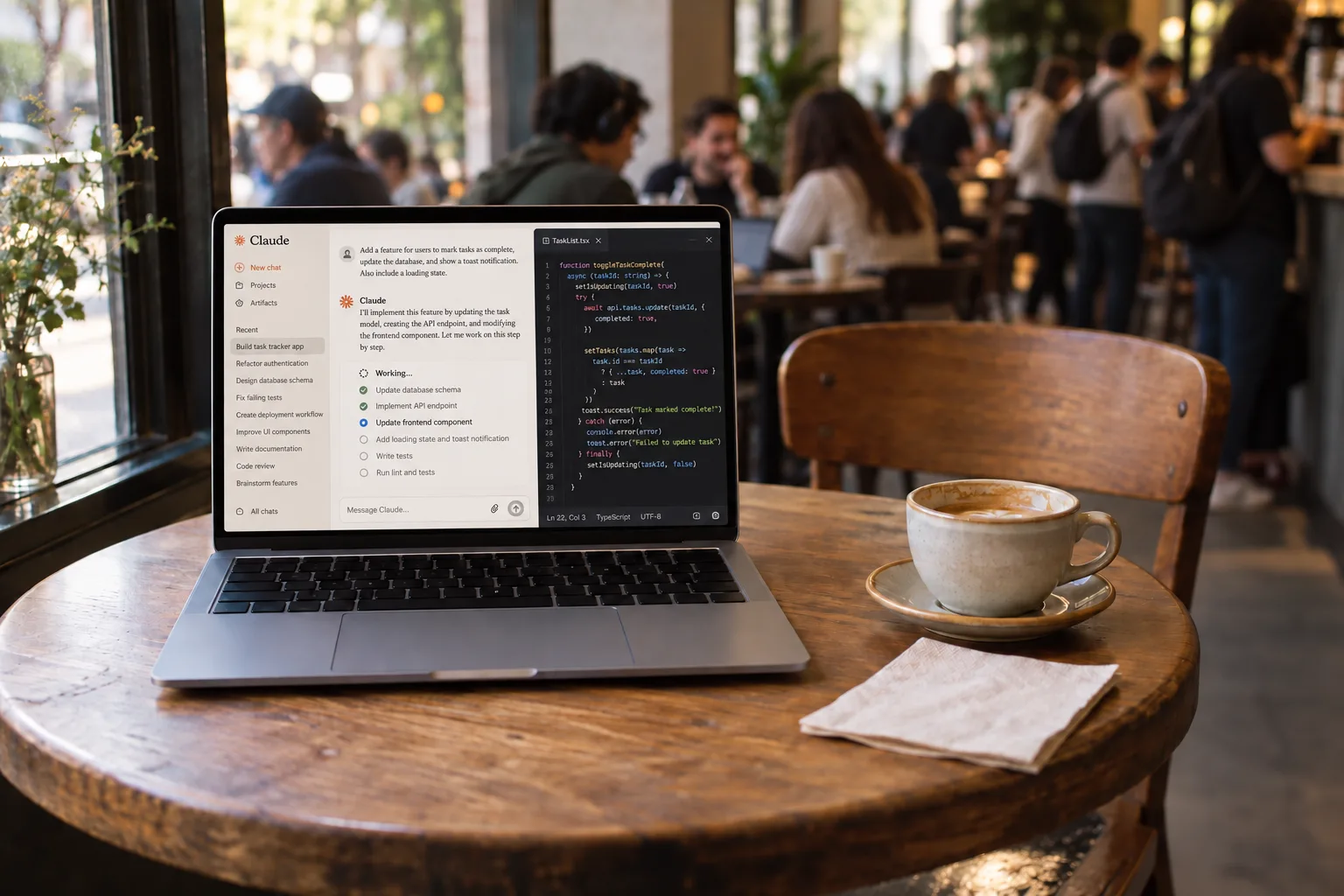
At a café.
You get up for a refill and your inbox, your chats, and your customer’s data sit open to a room full of strangers. One shortcut and the screen is black until you are back.
Leave a Mac alone and one of two things goes wrong: it falls asleep and the work stops, or it stays on for the whole room to read. Veil fixes both with one shortcut.
You get up for a refill and your inbox, your chats, and your customer’s data sit open to a room full of strangers. One shortcut and the screen is black until you are back.
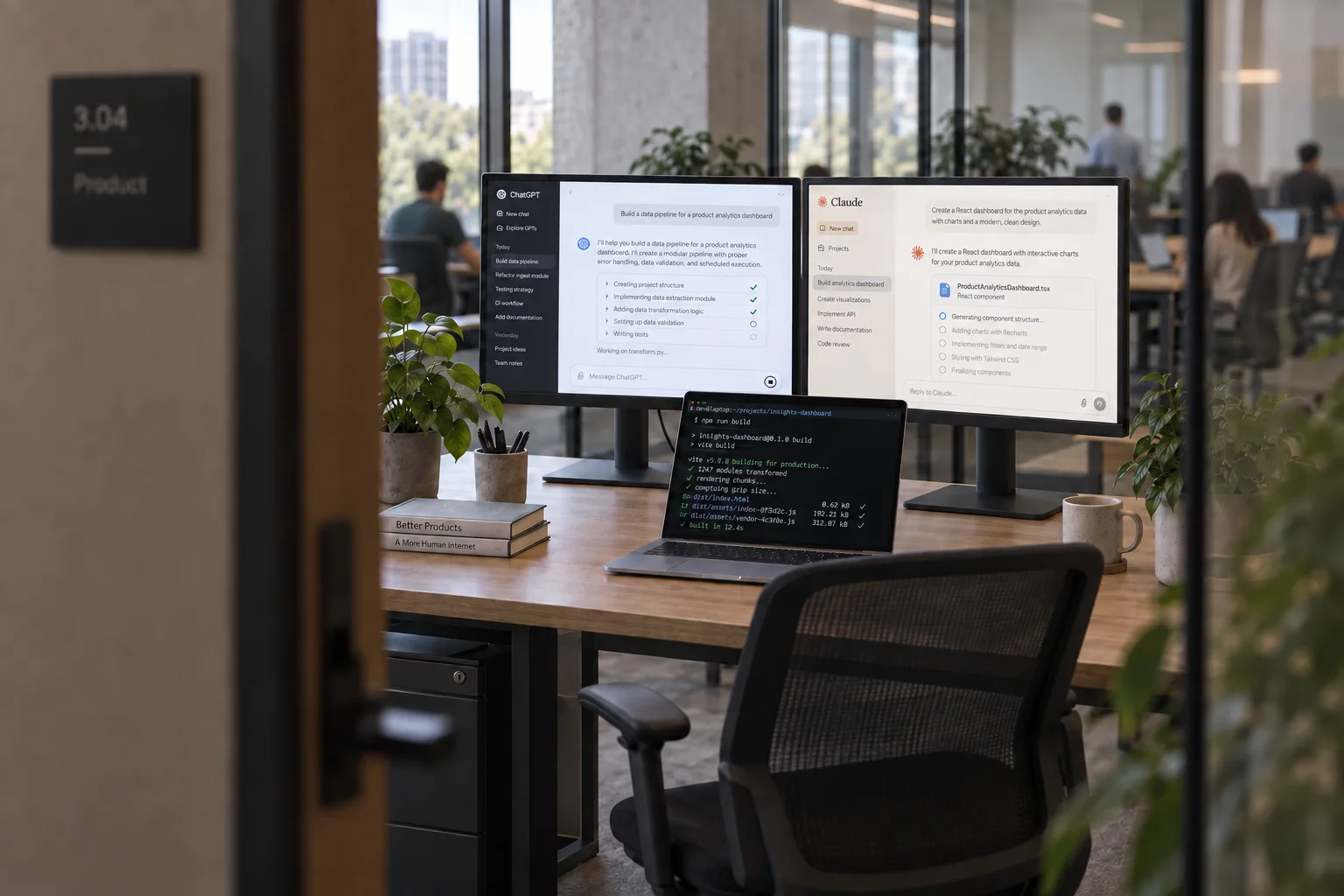
A meeting in five minutes, and every colleague walking past can read three screens of your work. Veil the desk once and walk out; the build keeps going.
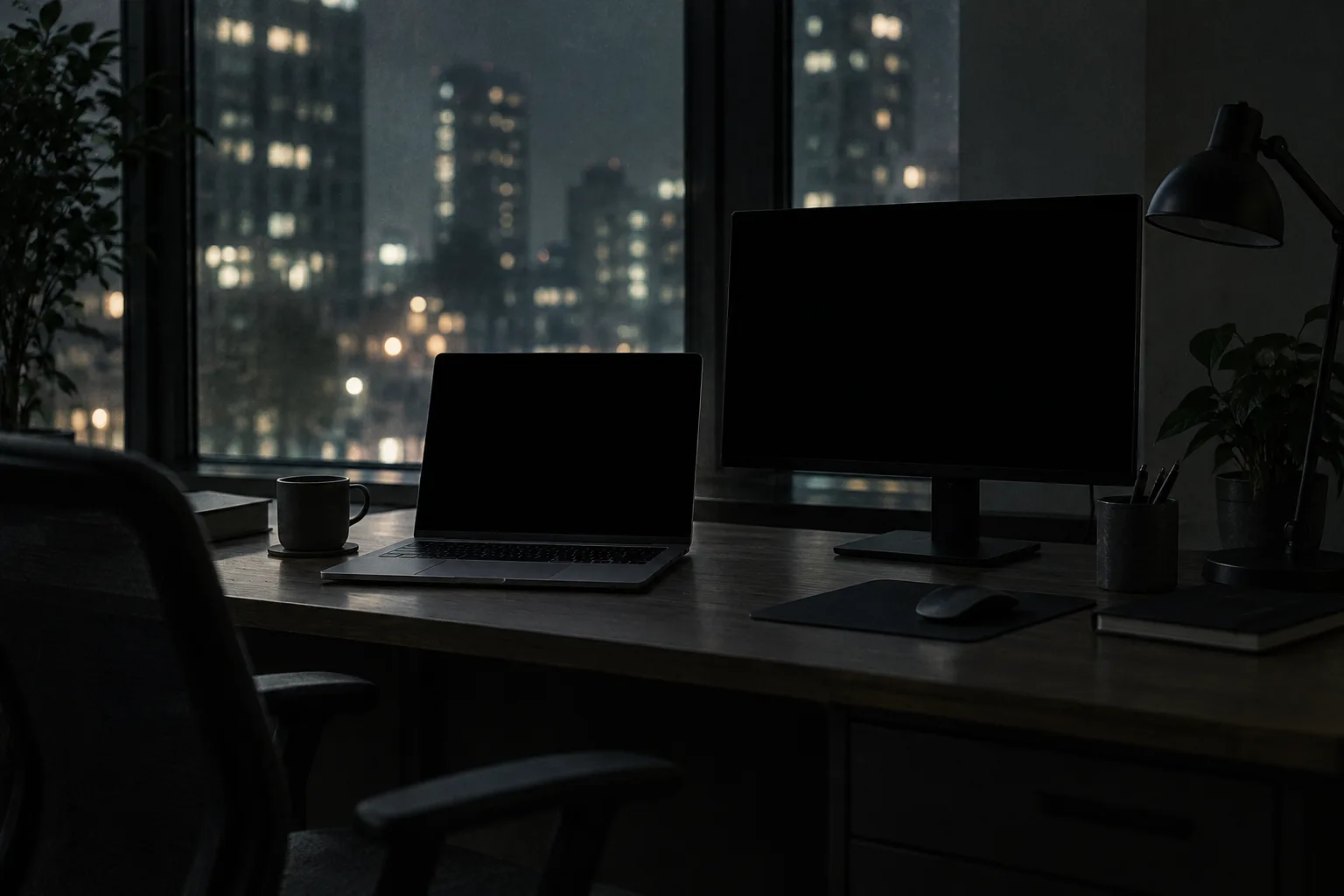
You remote in at 9pm to see how the task is doing. Veiled, the Mac is still awake and unlocked behind black glass, so you land straight in the session you left.
Coffee, a meeting, someone at your shoulder. Press Control–Escape—or set your own shortcut. Your screens go black, and your agent keeps working.
Every screen stays black. Behind it your desktop stays live, so your agents keep going, including the ones that use your computer.
Press the shortcut again and you’re back where you left off. Turn on Touch ID and only you can bring it back.
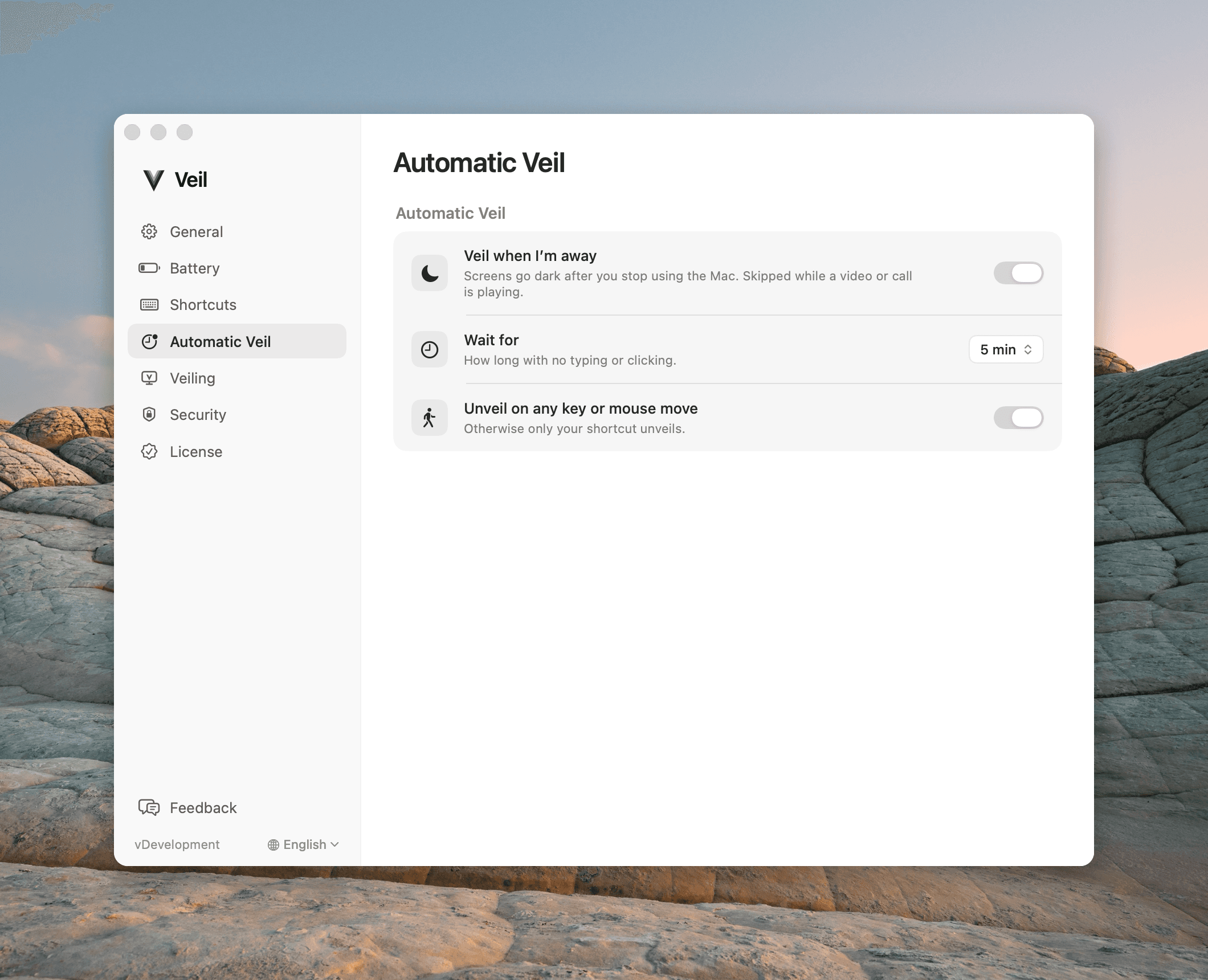
Automatic Veil covers the desk after a few minutes without typing, unless a call or a presentation is keeping the screen awake. A timer running out never locks the Mac by itself.
The MacBook and every external monitor go black together, on the same keypress. No screen gets left on by accident.
By default any key brings the desk back. Choose when Veil asks for Touch ID, and a later return goes through the real macOS Lock Screen.
Optionally ignore physical keys and clicks while veiled. Your shortcut still works, and software agents are unaffected. A deterrent, not a lock.
A low battery flashes a warning on the black screens. At the critical level Veil puts the Mac to sleep rather than let it die: still black, never unveiled.
LOCK, DIM, OR VEIL
Locking is the official answer. Holding the brightness key down is the one people actually use, because it’s right there on the keyboard. Neither does the whole job.
FOR THE SECURITY-CONSCIOUS
Veil is the version of that rule people will actually follow. Nearby eyes see nothing, the work keeps running, and if your policy needs a real lock on return, require Touch ID on unveil and roll it out as a managed setting.
For organizations it is a configuration profile and a signed package. No agent server to host. No employee accounts. Seats are bought online and released from a portal.
Veil for organizations →PAY ONCE
PERSONAL
Launch price for a limited time. 14 days free.
One purchase for up to two Macs you own. Every update included. Full refund within 30 days, no reason needed.
ORGANIZATION
One-time. From 5 seats. Buy online.
One shared key, a configuration profile, and a signed package for Jamf, Kandji, or Intune. Employees never sign in to anything.
Frequently asked questions
Keeping the Mac awake is the easy half, and Claude Code and Codex already do it for free. The other half is what the room sees while you are gone. An awake Mac shows your work until the display sleeps, which can be five or ten minutes. Veil makes every screen black the second you press the shortcut, without locking the session your work is running in.
Each one fixes half. Locking is private, but it interrupts your session behind a password. Closing the lid puts the Mac to sleep, or leaves your external monitors lit. A screen saver either locks the Mac or disappears when anyone moves the mouse. Minimum brightness is still readable, rarely reaches external monitors, and anyone can turn it back up. Veil blacks out every supported display in a second, keeps the Mac awake, and can require Touch ID before anything comes back.
No. Veil makes the displays black; the session stays active. If you want a real lock, choose when Veil should ask for Touch ID: come back after that time and the screens stay black until macOS has locked, then you return through the Lock Screen. A timer running out never locks the Mac on its own.
Yes. The Mac stays awake and the desktop keeps rendering, so Claude, Codex, builds, and uploads carry on as if nothing happened. Only your eyes are cut off. Brief branded transitions can appear in screen recordings; explicit sleep or a critical battery still pauses work as it always would.
Veil checks every connected display before it changes anything. If each one can go safely dark and come back, the whole desk veils together. If one cannot — DisplayLink, AirPlay, Sidecar, or a virtual display — Veil refuses the session and names the display instead of leaving it half covered.
Yes. Buy seats online, then download a signed installer and a pre-filled configuration profile from the organization portal. Push the profile, then the package, with Jamf, Kandji, or Intune. Macs activate on first launch; nobody pastes a key or signs in.
No. A personal license is one purchase for up to two Macs you own, with a 14-day full trial and a 30-day refund. Organization seats are one-time too, priced per seat with a five-seat minimum.
Try Veil free for 14 days. Find your own rhythm.