HelpMDM
Install the pkg
Download Veil.pkg and the sample profile from the team portal.
Download the installer and a ready-to-upload profile from licenses.itsveil.com/seats, then assign the profile before the package.
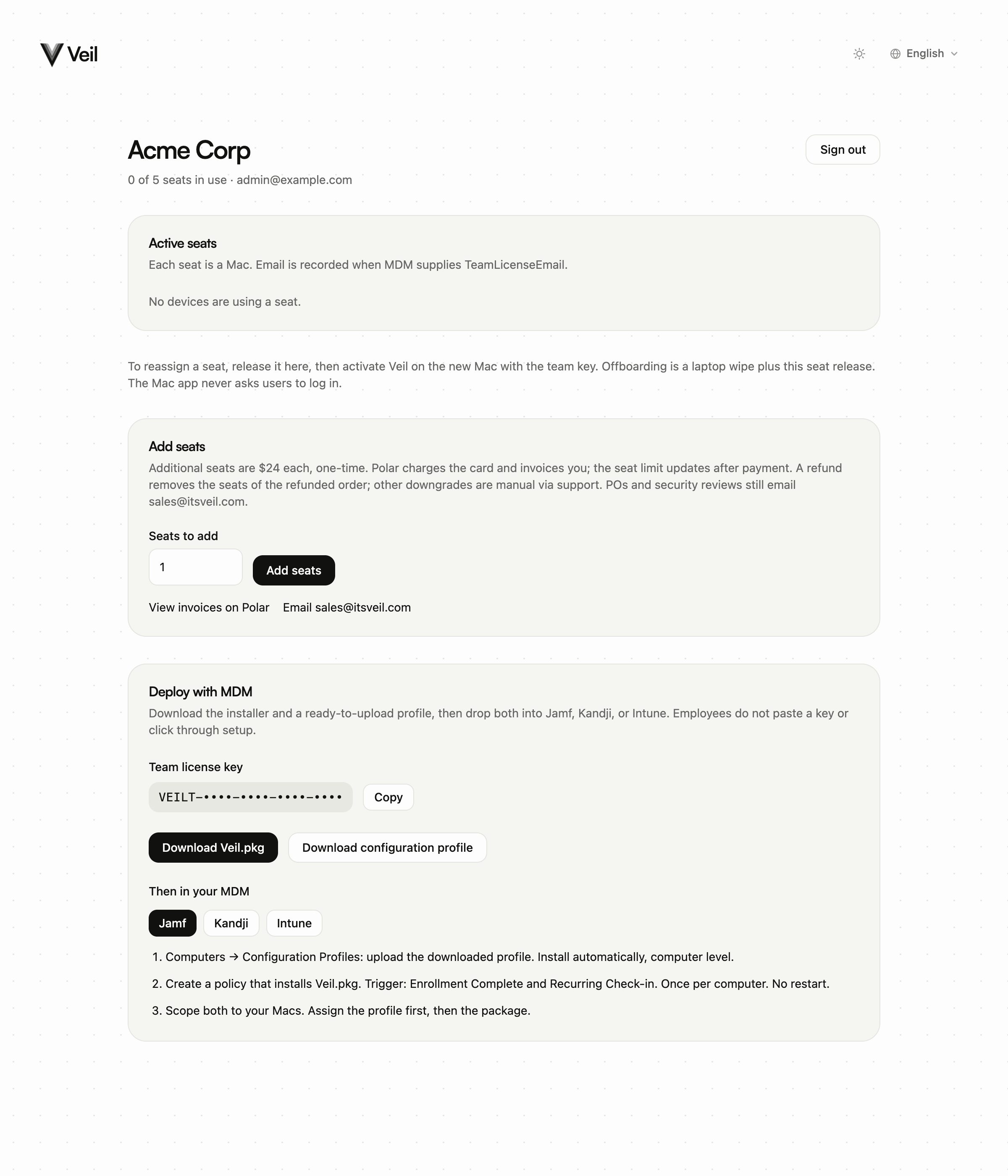
Download from the portal
- Sign in as the team admin and open the Deploy with MDM card.
- Copy the Team license key if you build your own profile. It must be a VTL- key.
- Download Veil.pkg and Download configuration profile.
The portal profile covers the team key, Automatic Veil, Touch ID, and launch-on-login. It does not include the input-block key or a Privacy Preferences Policy Control payload. Add Accessibility separately if you want Block keyboard and mouse while veiled with zero employee clicks.
Assign profile, then pkg
- Upload the
.mobileconfigin your MDM and scope it to the Macs. Wait until the profile is installed. - Then assign Veil.pkg. The package is silent: it installs to /Applications and launches Veil for the logged-in user so activation can run.
Jamf, Kandji, and Intune steps are on the same card. Put the profile and the package on the same scope. Do not ask the employee to open Veil, paste a key, or click Launch on login.
What Settings should show
No welcome tour. License reads as a managed team Mac, with Managed by your organization and no personal buy flow. Launch on login is on and managed when you force that key. Unveil still works if activation is still pending.