HelpTroubleshoot
Displays stayed black
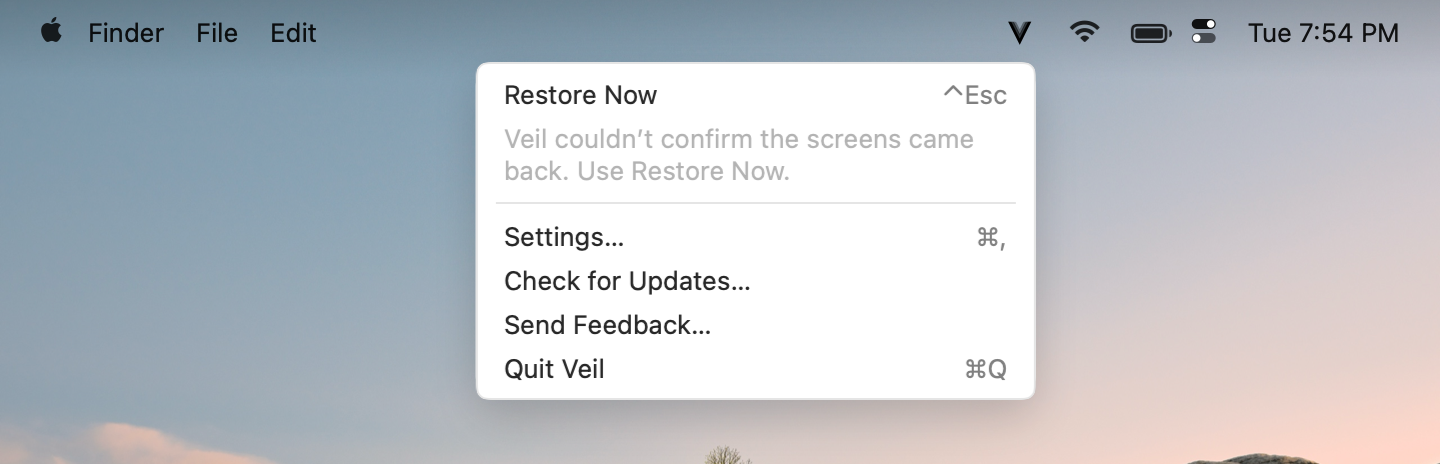
Displays stayed black or Veil could not request Lock Screen.
Displays stayed black, or Veil could not request Lock Screen. Licensing never blocks unveil or recovery. You can always bring screens back even if a trial ended or a key is missing.
1. Press the shortcut again
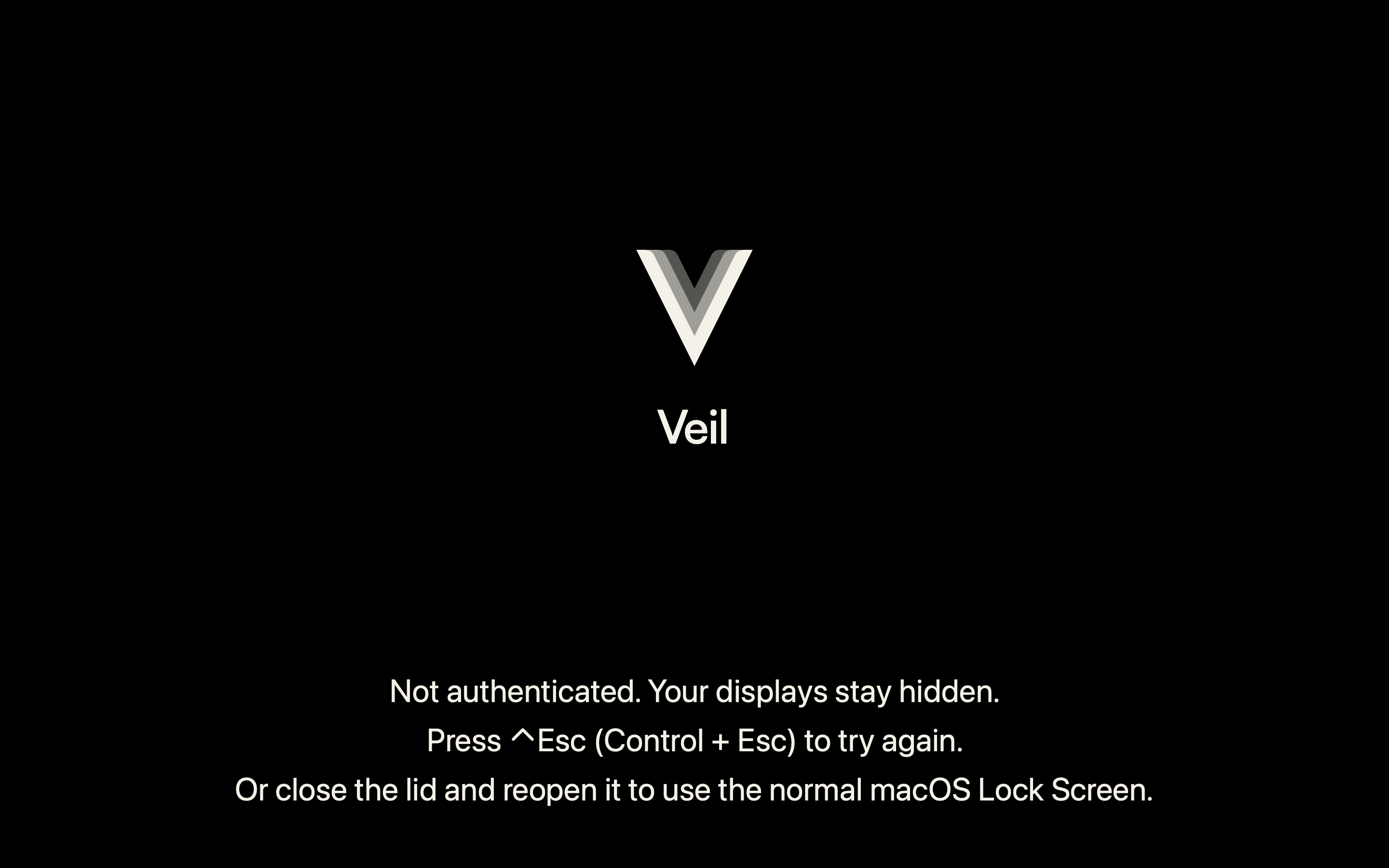
The default is Control+Escape. After the screens go black, that press unveils — or Veil shows a recovery screen if a required lock failed.
2. Use the recovery screen
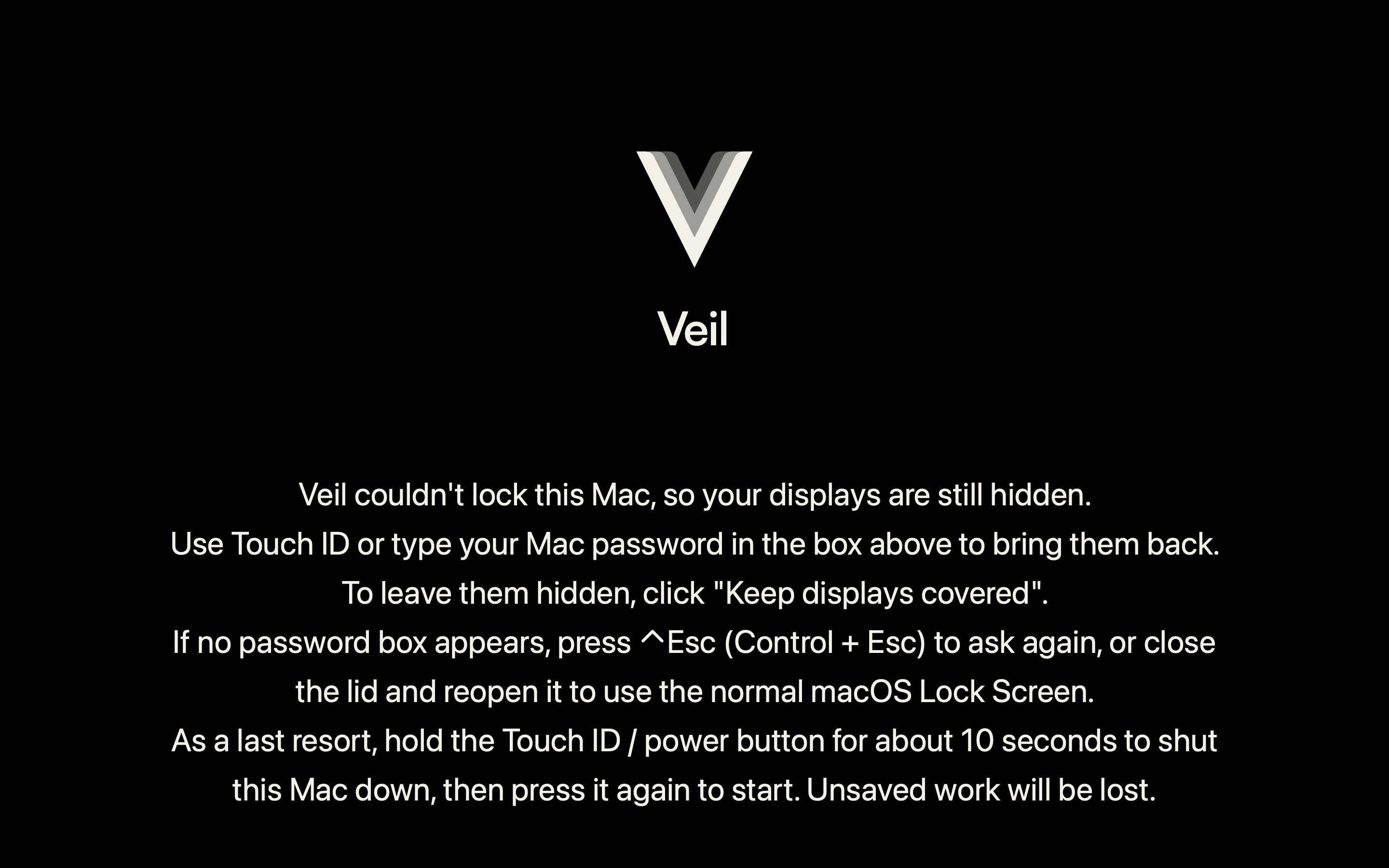
If Veil could not lock this Mac, Veil shows a recovery screen with the macOS password prompt. Use Touch ID or type your Mac password in that system prompt. Veil never collects a password in its own UI. To leave the screens hidden, choose Keep displays covered.
3. Last resorts
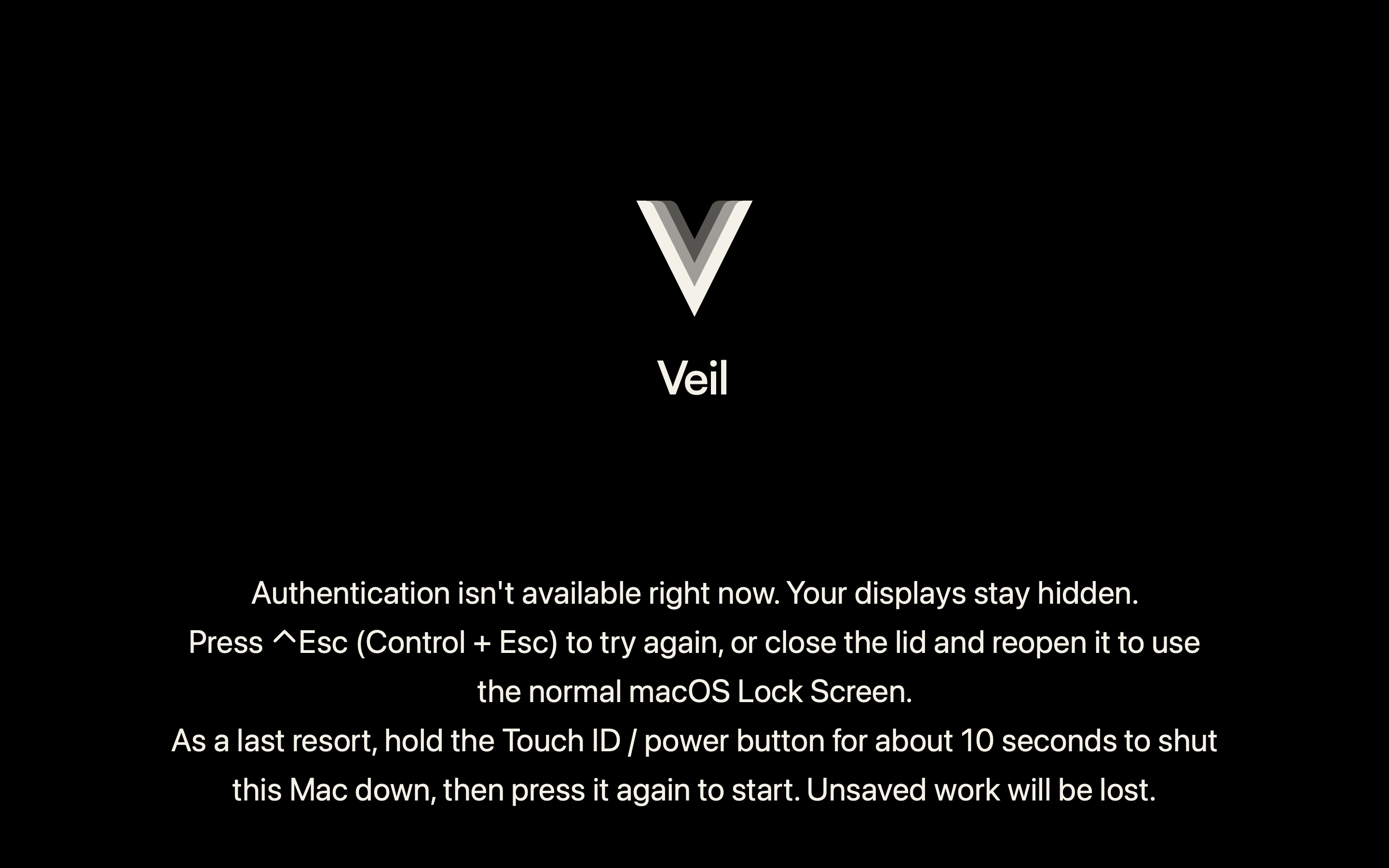
- Close the lid and reopen it to use the normal macOS Lock Screen.
- Hold the Touch ID / power button for about 10 seconds to shut the Mac down, then press it again to start. Unsaved work will be lost.
Contact support
Email support@itsveil.com. Include the Veil version (Settings sidebar), macOS version, and display setup (built-in, externals, DisplayLink, AirPlay, Sidecar). Do not send license keys or magic-link URLs.