HelpUsing Veil
Displays
Which panels Veil can black, and what happens when one display is unsafe.
Veil blacks every supported physical panel, or it refuses the whole session before changing any display. Support depends on the connected displays, not on brand or cable. No extra setup on the display is needed.
The Mac compatibility summary lives on the download page. This page is what to do when a panel is unsafe, skipped, or missing.
Screenshot coming soon
Hardware guide listing supported built-in and external displays
/help-screenshots/veil.web.hardware.png
All-or-nothing for unsafe panels
One unsafe panel refuses the entire session. Unsafe includes DisplayLink, AirPlay, Sidecar, remote displays, and a built-in or non-mirrored external that cannot be blacked safely and restored.
Named exclusions that do not refuse
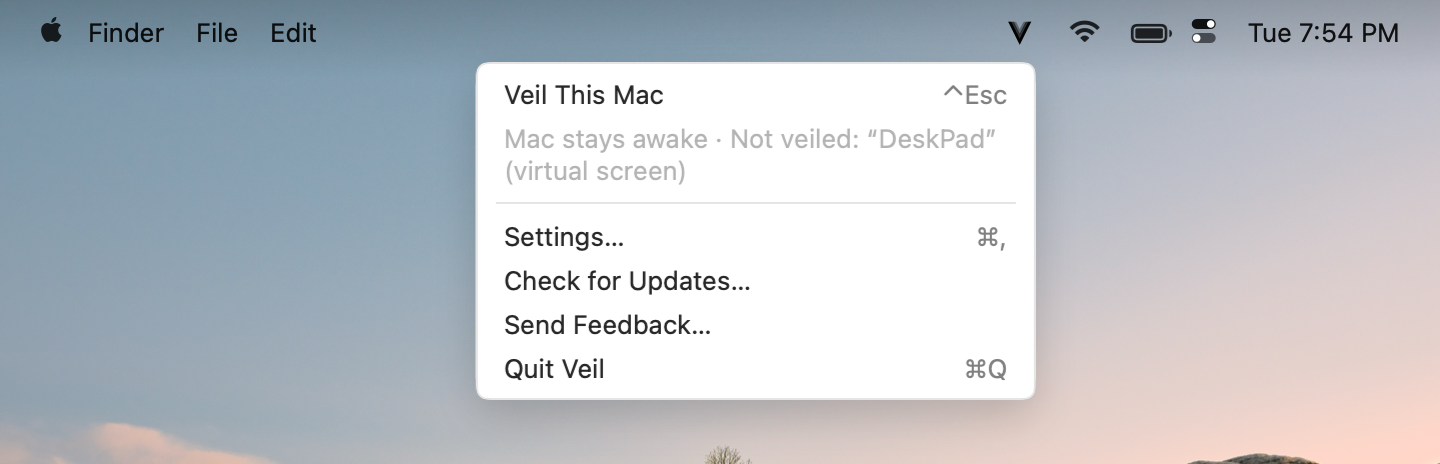
Two kinds of sink stay in the menu as Not veiled: … while real panels still veil:
- Software virtual displays (for example Jump Desktop) — no physical pixels an observer could see.
- Mirrored extras with no screen of their own stay listed as Not veiled when they cannot be blacked safely; if they can, they are blacked like any other display. They do not block the session.
If those exclusions leave no physical display to protect, Veil refuses the session and names the skipped sinks.
What is supported
- Built-in MacBook displays, Studio Display, and Pro Display XDR.
- Physical externals that can be blacked safely and restored. No extra setup on the display is needed.
Try your topology once
- Connect every display you plan to use.
- Start a veil.
- Confirm each physical panel goes black.
- Unveil and confirm each display looks the way it did before.
If a start is refused, or a panel stays wrong, see Veil won’t start and Displays stayed black.