HelpUsing Veil
Extra protection
Optional Accessibility and Input Monitoring so input is blocked and the shortcut still works.
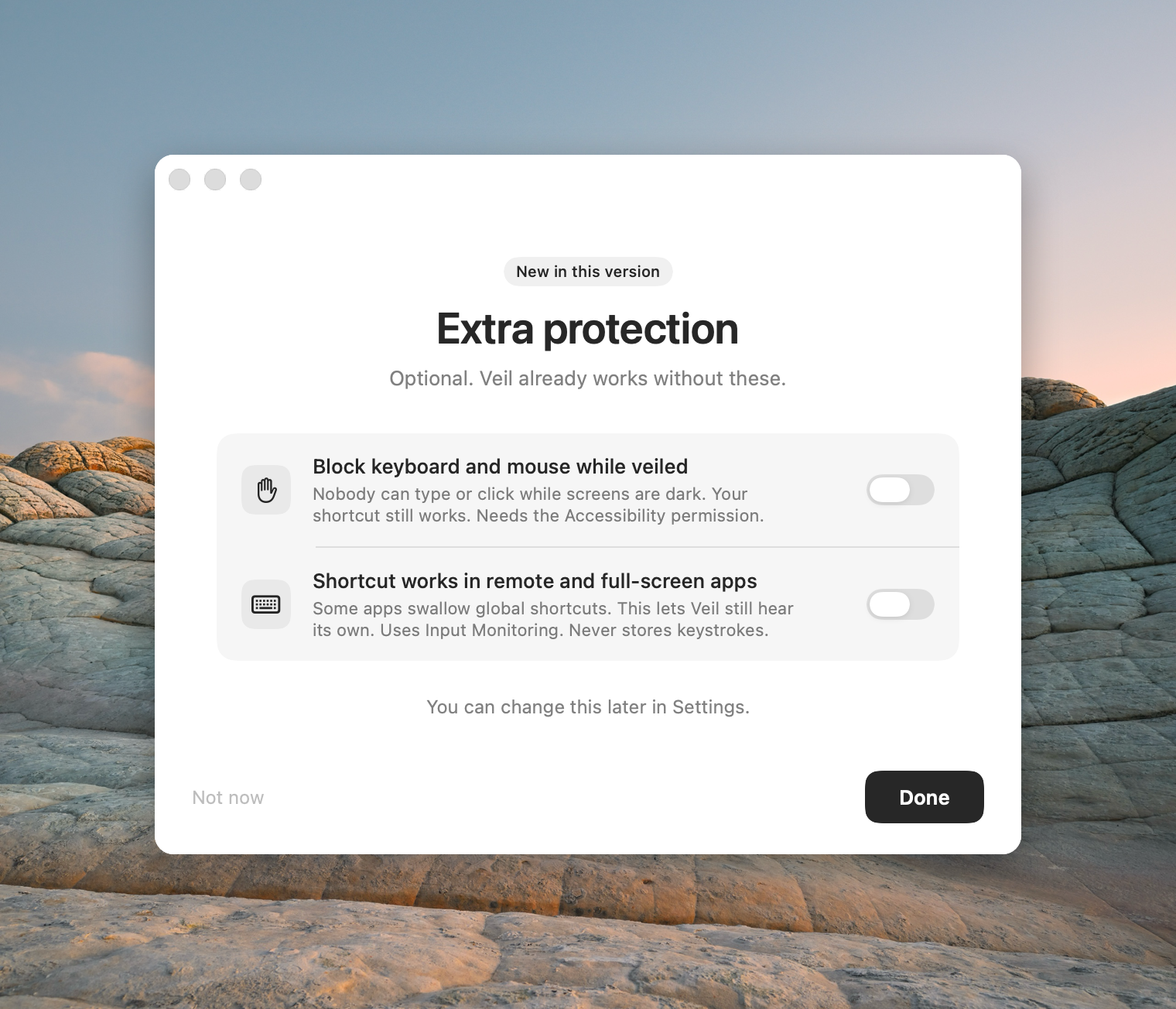
Extra protection is optional. Veil already works without these. You can turn them on during the welcome tour or later in Settings.
Block keyboard and mouse while veiled
Block keyboard and mouse while veiled drops physical keyboard, mouse, and trackpad input while a veil is active. Your unveil shortcut still works, and it is the only way to unveil while blocking: Unveil on any key or mouse move is paused for that session. Software agents are unaffected. It needs Accessibility; until you grant it, the row says Not blocking — Accessibility permission required and Veil veils as usual without blocking.
This is a deterrent, not a lock. Input flows again if Veil quits, crashes, or loses Accessibility. It cannot affect the lid, power button, Touch ID sensor, or authorized remote-control channels.
Shortcut works in remote and full-screen apps
Shortcut works in remote and full-screen apps keeps the shortcut working when a VM, game, or remote-desktop app would otherwise capture it. It uses Input Monitoring. Keystrokes are never stored. You still need to allow Input Monitoring in System Settings.
Permission states
- Off — the option is available and not enabled.
- Waiting — macOS still needs Allow. Use Allow Veil in System Settings….
- On — the permission is granted and the option is active.
- Try again — use Try again after you change the permission in System Settings.