HelpUsing Veil
First launch
Install Veil and complete the welcome tour on a personal Mac.
This walkthrough gets you from a download to one successful veil on a personal Mac.
1. Download and install
- Download Veil.dmg.
- Open the disk image and drag Veil to Applications.
- Open Veil from Applications.
In-app updates later use the update file. That file is not the installer — always start from Veil.dmg.
2. Find the menu bar mark
Veil lives in the menu bar. The mark appears after launch. Click it to veil, unveil, or open Settings.
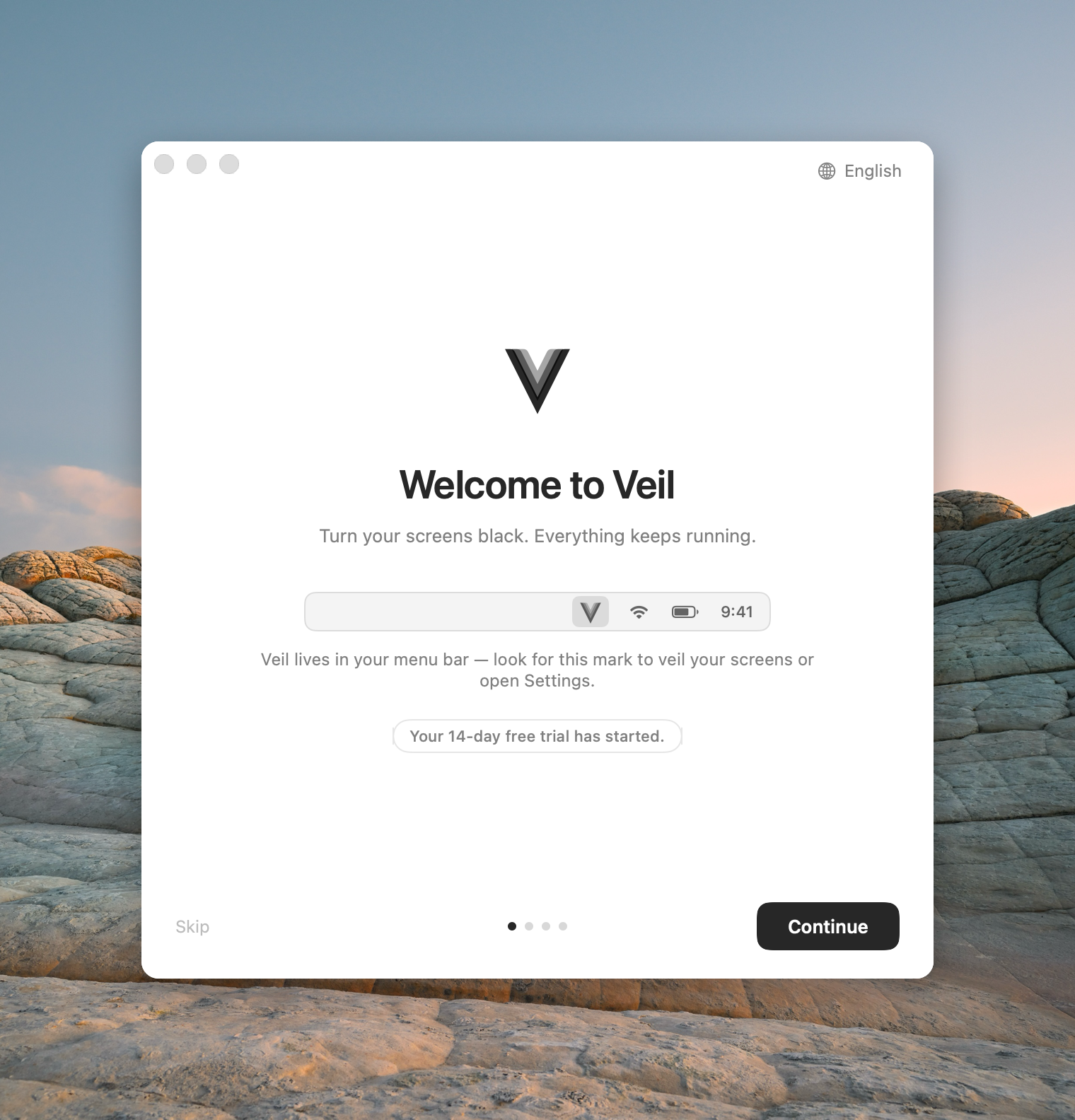
Step 1. The mark in the menu bar is Veil.
3. Finish the welcome tour
The tour has four steps:
- Welcome to Veil — screens go black; everything keeps running. A personal install starts a 14-day trial here.
- One gesture does it all — press the shortcut once (default Control+Escape) to try a veil. Press it again to come back. If anything goes wrong, the screens restore on their own in 15 seconds.
- Make Veil yours — optional setup for launch at login, Touch ID, and Automatic Veil.
- Extra protection — optional Accessibility and Input Monitoring. Veil already works without them.
One gesture
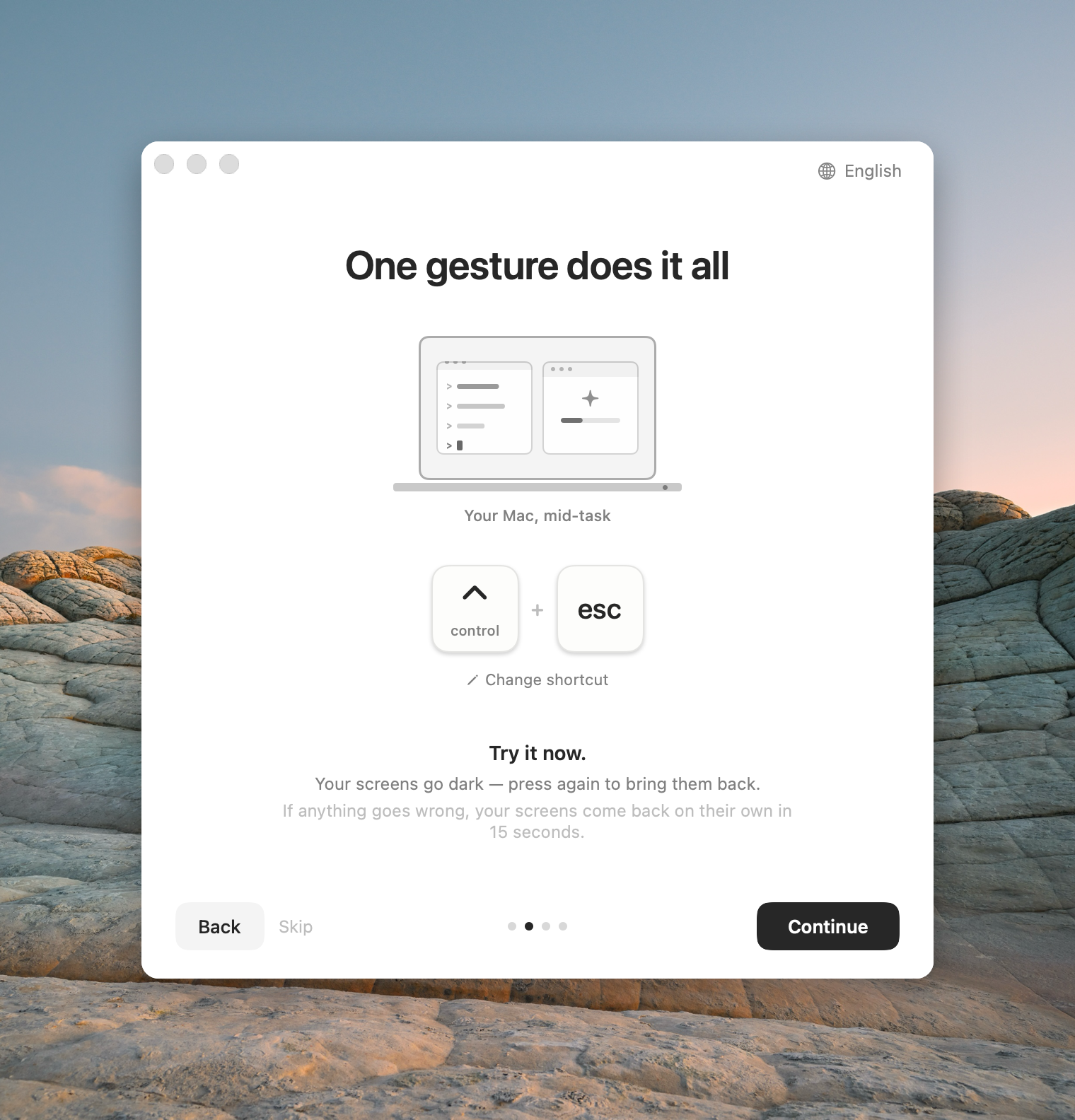
Step 2. Press the shortcut once to try a veil, then again to come back.
Make Veil yours
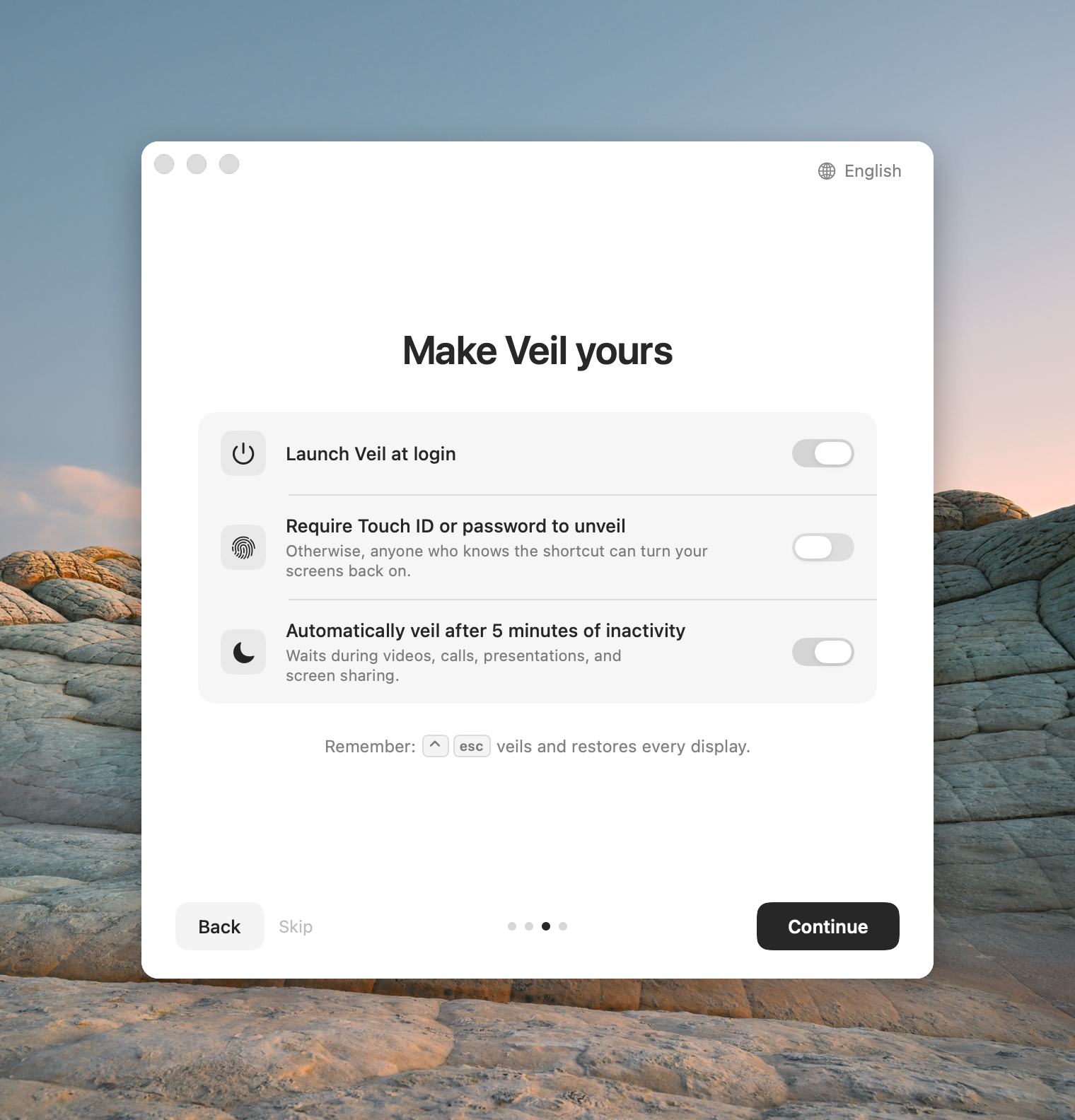
Step 3. Optional launch at login, Touch ID, and Automatic Veil.
Extra protection
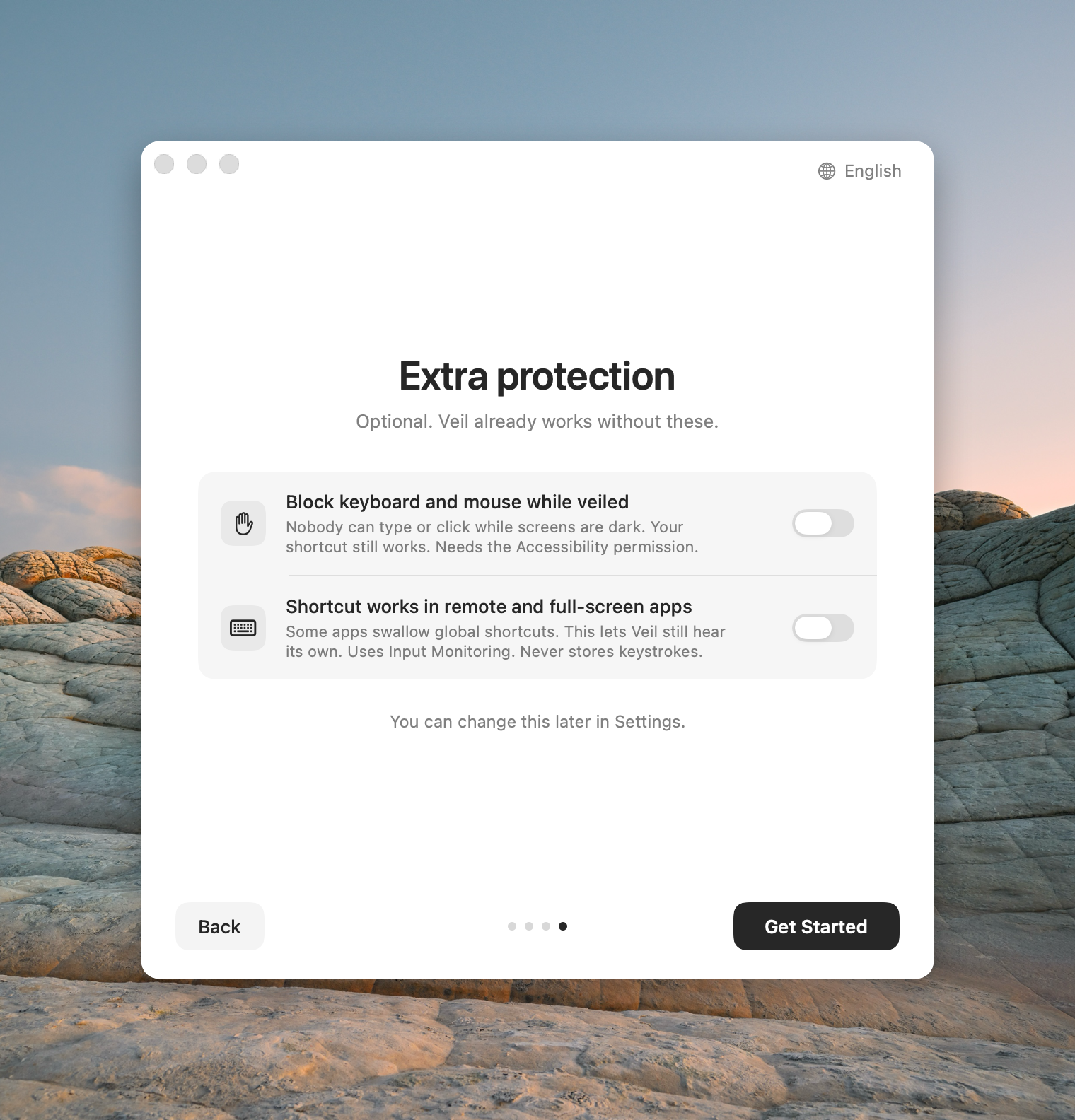
Step 4. Optional. Veil already works without these permissions.
If the shortcut is already taken, or macOS asks you to approve Launch on login, you can fix that in Settings after the tour. The 15-second safety restore brings the desktop back if the try-it step does not unveil.